Screen and Connection
New here? Watch the beginner video walkthrough in Chinese for the full sign-in and connection flow.
Video versus screenshots
| Mode | Entry | Requirements and limits |
|---|---|---|
| Browser video | My cloud phones → Open | A running device, streaming enabled and a usable network |
| Screenshot | Screenshot on a device card, if available | A still image, not live video; check its capture time |
Browser streaming is integrated for supported devices. The old statement that browser video is always unavailable no longer applies. Tools vary by device; follow the enabled controls.
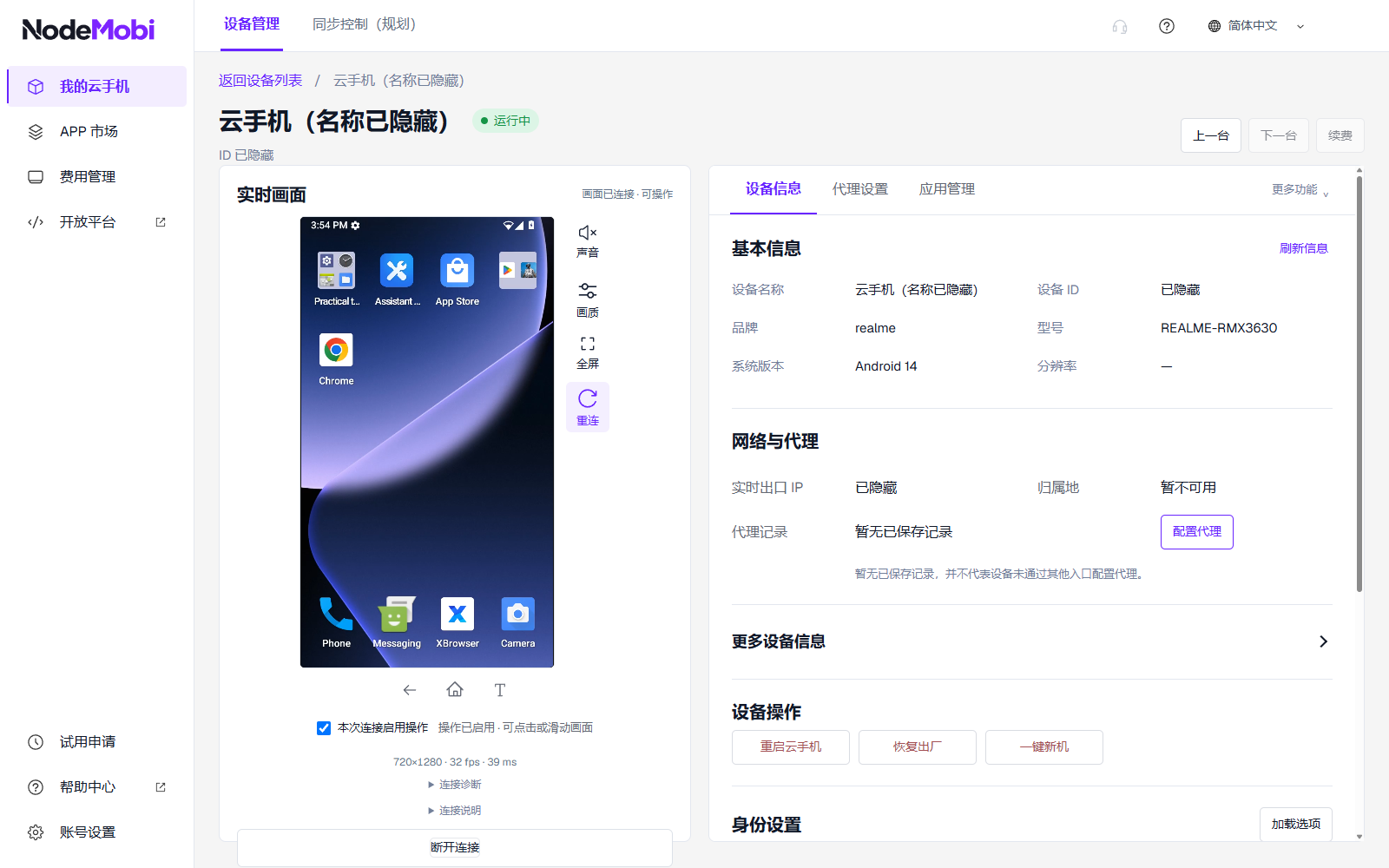
Previously published real capture from September 16, 2026, with identifiers hidden. The interface is Chinese; later layouts may differ. This is not evidence of every device connecting today.
Connect
- Refresh My cloud phones and select Open for a connectable device.
- Wait for actual video. A connection message, running status or screenshot is not a live frame.
- Before typing, click the input field inside the phone screen to focus it.
- Disconnect when finished. This does not shut down the cloud phone.
Connecting, black screen or unresponsive input
| Symptom | Check first |
|---|---|
| Open unavailable | Device state, assignment and streaming capability |
| Running but no video | Device state and streaming are separate; check the local network, wait briefly, then disconnect and reconnect |
| Video but no input | Control permission, app input focus and the current operation feedback |
| Unchanging screenshot | It is a still image; capture again when needed |
If the issue continues, record the time, browser, device ID, displayed message and whether any video appeared. Do not start with repeated restarts or a factory reset; these may interrupt work or clear data. Other operations are not guaranteed to work when streaming fails; check their results individually.