Egress Proxy
Find proxy settings
Use View available actions in the device list's Proxy column, or expand Device settings → Proxy settings on the device page. Entries and protocol choices depend on the device.
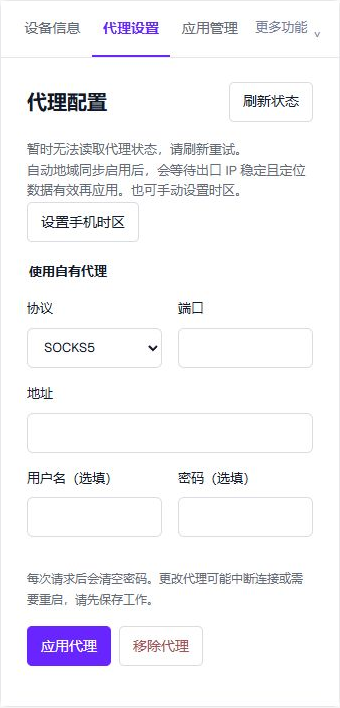
Live Chinese panel, September 18, 2026; no proxy was entered or submitted. This device offers SOCKS5 only. The notice reports an unavailable status read, not a successful proxy test.
Enter and apply settings
- Confirm the device and current state. Use 刷新状态 (Refresh status) after a failed read; failure does not prove that no proxy exists.
- Enter the protocol, 地址 (Address), 端口 (Port), and any required 用户名 (Username) and 密码 (Password) from your proxy provider. Use only offered protocols.
- Save work before selecting 应用代理 (Apply proxy). Network changes may disconnect the viewer or require a device restart.
- Wait for task feedback and verify the actual exit address. Submission, task completion and effective routing are separate stages. Avoid repeated submissions.
The captured panel has no separate Test button. Do not follow older instructions for a control that is not present. 移除代理 (Remove proxy) also changes the device network; use it only when intended.
Passwords and region settings
The page states that the password is cleared after each request; re-enter it when needed. Keep proxy credentials out of screenshots and issue reports.
Automatic region sync requires the feature to be enabled, a stable exit and valid location data. Applying a proxy does not guarantee changes to SIM, GPS and timezone. The panel provides a separate timezone entry; verify settings after changes.
Why does status reading fail?
It means this read did not establish the current state, not that the proxy was removed or the phone is broken. Refresh and record the time and message if it persists. Timing varies by device; there is no universal 30-second or 5–6-minute guarantee.