Account and Sign-in
Open the sign-in page, or create a free account. An account does not include an allocated device. See Quick Start for trial access.
These screenshots were captured from the live site on September 18, 2026 with empty forms. They show the available interfaces, not a completed SMS delivery, registration or password reset.
Choose a sign-in method
| Method | Requirements | Steps |
|---|---|---|
| Phone and password | Password sign-in enabled for the account and a valid password | Use the default Phone login tab; check the country code |
| SMS code | Access to the phone number and an available SMS entry | Select Use a verification code, request a code and submit it |
| Email and password | A registered, verified email address | Select Email login and use your registered email |
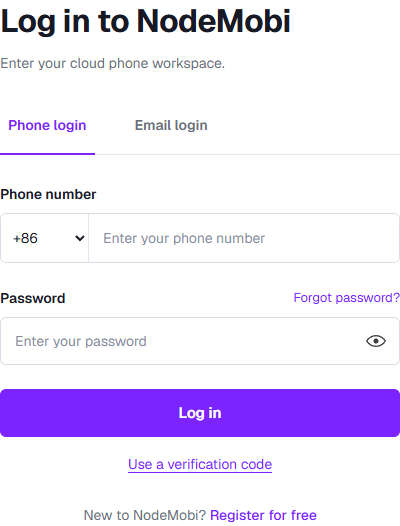
Figure 1: Email login is above the form; SMS sign-in is below the login button.
Check the country code before entering the local number. The eye button shows or hides your password; take care on shared screens.
Create an account
Phone registration
- Open the registration page and select Phone registration.
- Check the country code and number, then select Send code.
- Enter the received code and select Verify and log in / register. Successful verification creates an account for an unregistered number.
- If prompted to set an initial password, complete that step before entering the workspace. A verification code is not a password.
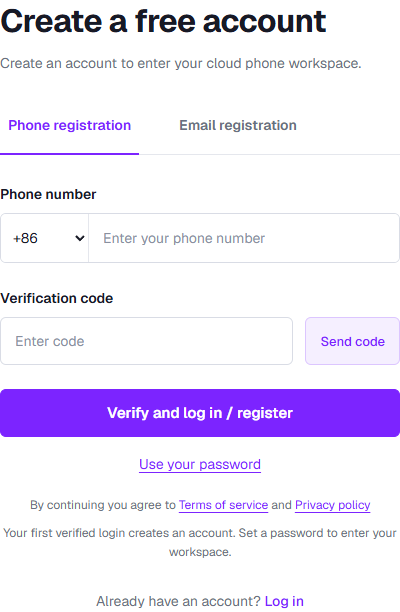
Figure 2: Follow the actual prompt after verification to determine whether password setup is required.
SMS verifies your number at registration. It does not mean every phone account can remain password-free. The initial-password page requires 12–128 characters and matching confirmation. Entering a number alone does not authorize password setup.
Email registration
- Select Email registration. Enter an accessible email address and a password of at least 10 characters.
- Read the terms and privacy information offered by the page before confirming and submitting.
- Open the verification email and follow its link, then return to email login.
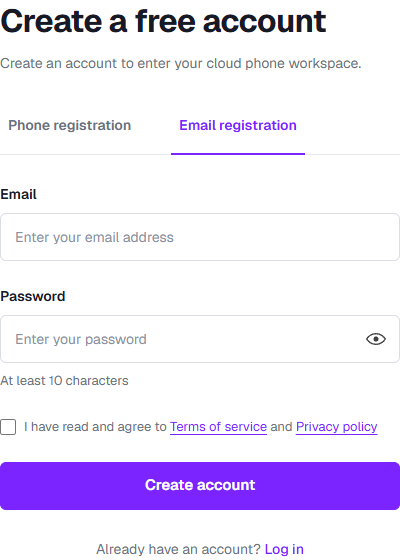
Figure 3: An accepted request does not confirm email delivery. Check your spam folder too.
Do not assume that separately registering by email automatically merges with your phone account. An account without a linked email cannot use email recovery.
Forgotten password
Email accounts: select Email recovery, enter your registered email and follow the reset link.
Phone accounts: as of September 18, 2026, Phone recovery on the login page is still unavailable. Send code and Verify and continue are disabled. Return to login and use SMS sign-in if available. If already signed in and your account settings offer SMS password change, follow that entry. Changing a password while signed in is different from recovering access while signed out.
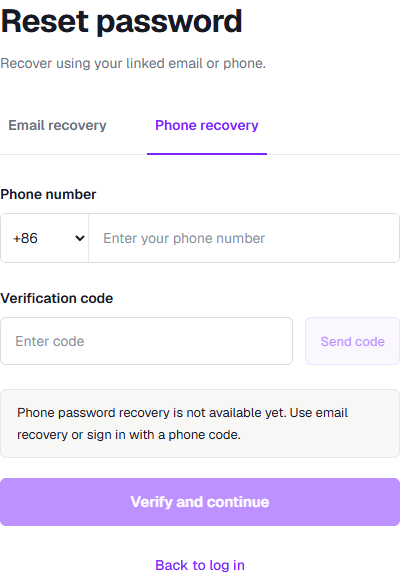
Figure 4: The current phone recovery screen. Re-entering the number will not enable this unavailable flow.
Codes and troubleshooting
| Situation | What to do |
|---|---|
| Send-code countdown | Wait until it ends, usually at least 60 seconds; avoid repeated requests |
| Daily limit or rate limit | Follow the message and retry later, or use an existing password |
| Invalid or expired code | Check the number and latest code; request a new code after expiry |
| No SMS received | Check country code, number, signal and blocked messages; a different email account will not show the original account's devices |
| No SMS entry | Use a sign-in method enabled in this environment |
| No devices after login | Check your account and trial status before registering again |
| Repeated incorrect passwords | Stop retrying and use an available recovery method; login attempts can be rate-limited |
Keep verification codes and reset links private. Logout, session expiry or service updates may require another login. Always sign out on shared computers.
Account email verification is separate from device expiry notifications. See Renewal and Expiry for notification conditions.